AutoJournal AI for Content Creators
Master Your Productivity & Writing Workflow
As a content creator, you know the struggle: hours disappear into research, editing, and administrative tasks. Where does your time actually go? AutoJournal AI automatically tracks every application and window you use, then leverages AI to generate insights about your work patterns.
What you'll learn:
- Setting up AutoJournal AI for automatic tracking
- Interpreting your daily activity dashboard
- Using AI Analysis to identify productivity patterns
- Optimizing your workflow based on data-driven insights
- Best practices for maximizing writing focus time
Getting Started with AutoJournal AI
Installation & Setup
AutoJournal AI is a native macOS desktop application that runs entirely on your computer.
Requirements:
- macOS (the app is macOS-only)
- Screen Recording and Accessibility permissions (required for window tracking)
Installation Steps:
- Download AutoJournal AI from autojournal.tech
- Install the app to your Applications folder
- Launch AutoJournal AI
- Grant required permissions when prompted:
- Screen Recording: Allows the app to see which windows you have open
- Accessibility: Enables window title tracking
- The app will begin tracking immediately—no account setup required
How It Works:
AutoJournal AI runs in the background and automatically:
- Tracks every application and window you open
- Records window titles and focus time
- Captures timestamps of all activity
- Stores all data locally on your Mac in SQLite database (no cloud sync)
Privacy & Security:
The app only tracks window titles and app names—it never captures:
- Keystrokes or what you type
- Passwords or sensitive data
- File contents
- Browsing history
All your data stays on your computer. There is no cloud sync or external servers.
Understanding Your Dashboard - Today's Activity
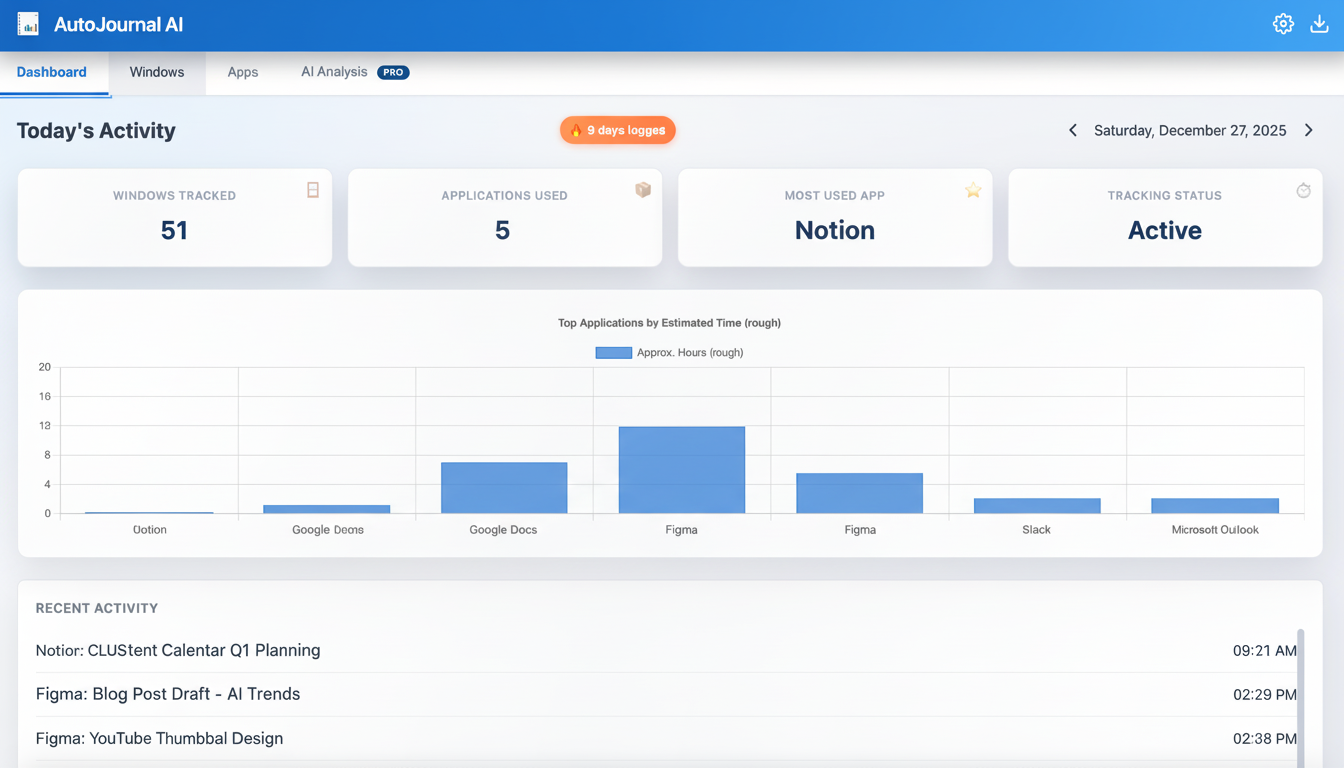
Your Dashboard is your command center. Here's what each section shows:
Key Metrics at a Glance
Windows Tracked:
Shows the number of unique applications/windows active during the day (e.g., 51 today). This helps you understand how fragmented your focus might be.
Applications Used:
Total number of distinct apps. Content creators typically use 8-12 apps regularly (Google Docs, Notion, Grammarly, Figma, Chrome, etc.).
Most Used App:
Highlights your primary tool. For writers, this is usually your text editor or word processor.
Tracking Status:
Shows if AutoJournal is actively monitoring (should show "Active" for accurate data).
Top Applications by Time (Rough Estimate)
This bar chart breaks down where your time actually goes. A healthy content creator workflow typically looks like:
- 50-60% writing/drafting (Google Docs, Notion, Substack, etc.)
- 20-30% research (Chrome, Safari, specialized databases)
- 10-15% editing/proofreading (Grammarly, ProWritingAid, etc.)
- 5-10% administrative (Email, Slack, project management)
Recent Activity Log
Scroll down to see timestamped records of what you were doing. This is useful for:
- Reconstructing your day when logging hours
- Identifying distraction patterns
- Spotting when you switch between tasks
Tracking Your Writing Sessions - The Windows Tab
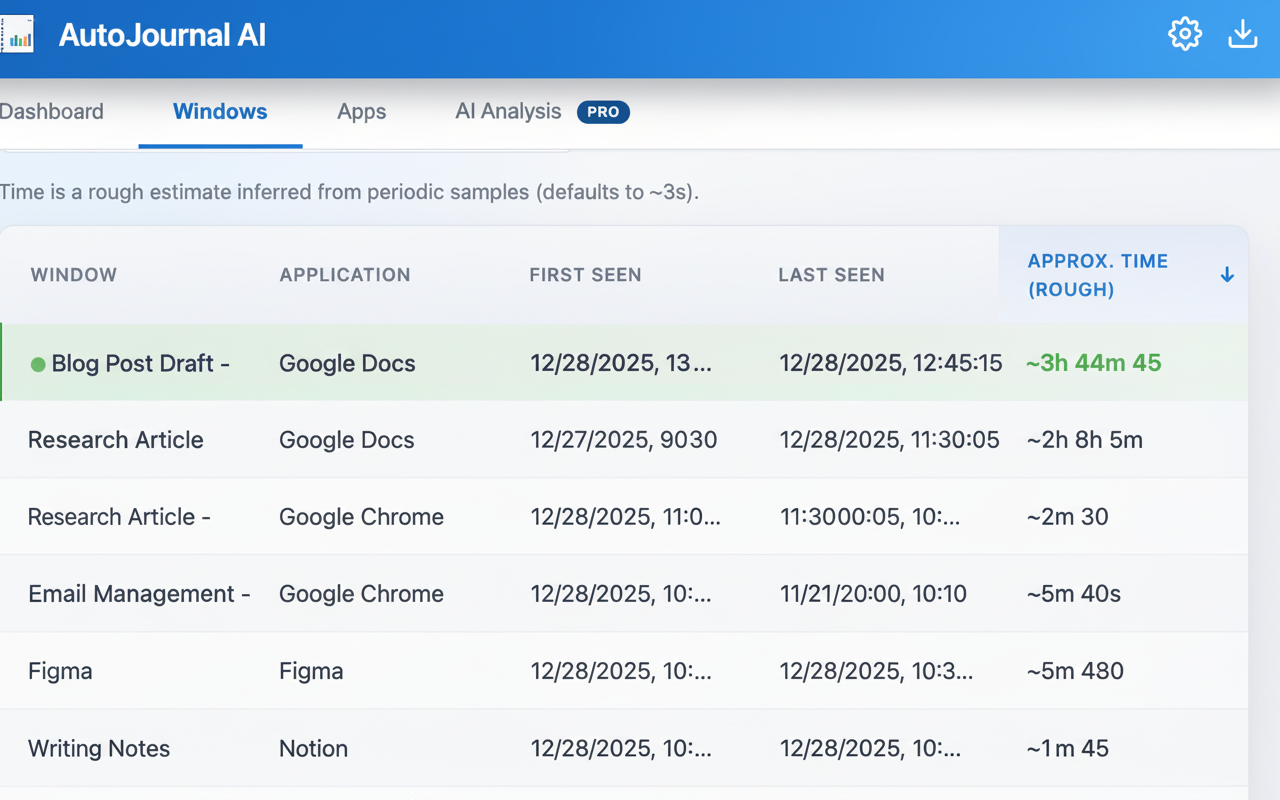
The Windows tab shows granular detail about every active window on your computer.
Understanding the Table
| Column | What It Tells You |
|---|---|
| WINDOW | The title of the document/page you had open |
| APPLICATION | Which program it belongs to (Google Docs, Chrome, Figma, etc.) |
| FIRST SEEN | When you first opened this window |
| LAST SEEN | When you last had it in focus |
| APPROX. TIME | Rough estimate of active focus time on that window |
Real-World Example: A Content Creator's Day
Imagine tracking a blog post creation day:
- 9:15 AM - 10:45 AM (~1.5h): "Blog Post Draft - Google Docs" shows your main writing session
- 10:45 AM - 12:30 PM (~1.75h): "Research Article - Chrome" captures your research phase
- 12:30 PM - 1:15 PM (~45m): Lunch/break (minimal activity)
- 1:15 PM - 3:30 PM (~2.25h): Back to Google Docs for rewriting and incorporating research
- 3:30 PM - 4:00 PM (~30m): "Design Layout - Figma" for creating featured image
- 4:00 PM - 4:45 PM (~45m): "Email Management - Gmail" to schedule post and notify team
Why This Matters
This granular view reveals:
- How deep your focus is: Long unbroken sessions (2+ hours) indicate deep work
- Context switching cost: Frequent app switches hurt productivity—the more times you jump between apps, the more friction in your workflow
- Realistic time estimates: Instead of guessing how long a task took, you have proof
AI Analysis - Unlock Productivity Insights
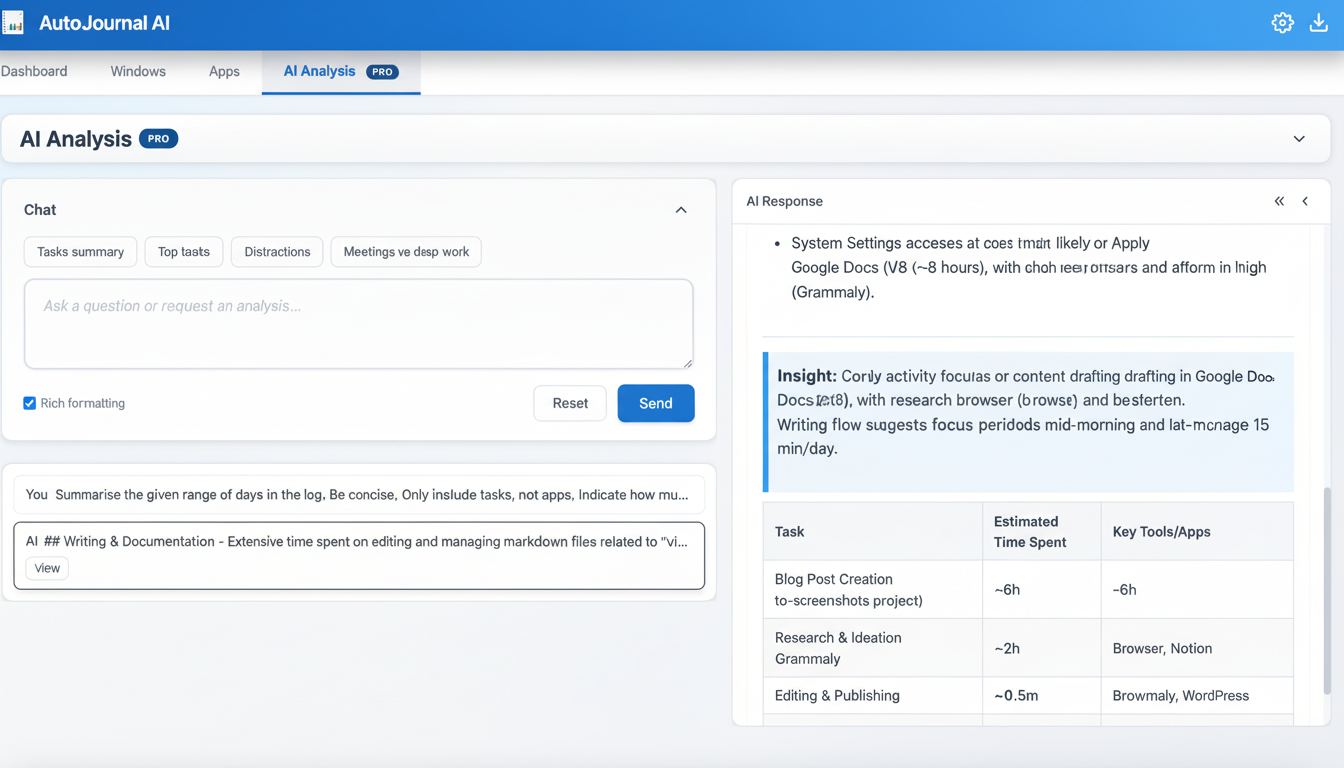
This is where AutoJournal AI becomes truly powerful. The AI Analysis tab (PRO feature) uses machine learning to understand your work patterns.
Using the Chat Feature
The AI Analysis section has a chat interface with preset analysis prompts:
- "Tasks summary" - Summarizes what you accomplished today
- "Top tasks" - Your most time-consuming activities
- "Distractions" - Identifies app-switching and interruptions
- "Meetings vs deep work" - For teams collaborating on content
You can also ask custom questions like:
- "When was I most productive today?"
- "How much time did I spend on research vs writing?"
- "What interrupted my focus the most?"
AI Response Example
For a content creator, you might get:
"Core daily activity focuses on content drafting in Google Docs (~8 hours), with research in browser (~2 hours), and editing/proofreading in Grammarly (~1 hour). Writing flow suggests optimal focus periods mid-morning (9-11 AM) and late afternoon (3-5 PM). Email interruptions average 15 min/day, mostly clustered at morning and end-of-day."
The Insight Panel
On the right side, you'll see:
- Insight statement: A summary of your work style and patterns
- Task breakdown table: Lists major activities with time estimates and tools used
- Blog Post Creation: ~6 hours
- Research & Ideation: ~2 hours
- Editing & Publishing: ~1.5 hours
Use this data to:
- Identify your optimal creative hours and schedule deep work then
- Spot interruption patterns and block calendar time
- Understand tool usage and consider if you need better integrations
- Track weekly trends to spot burnout patterns
Advanced: Querying Your Data with MCP
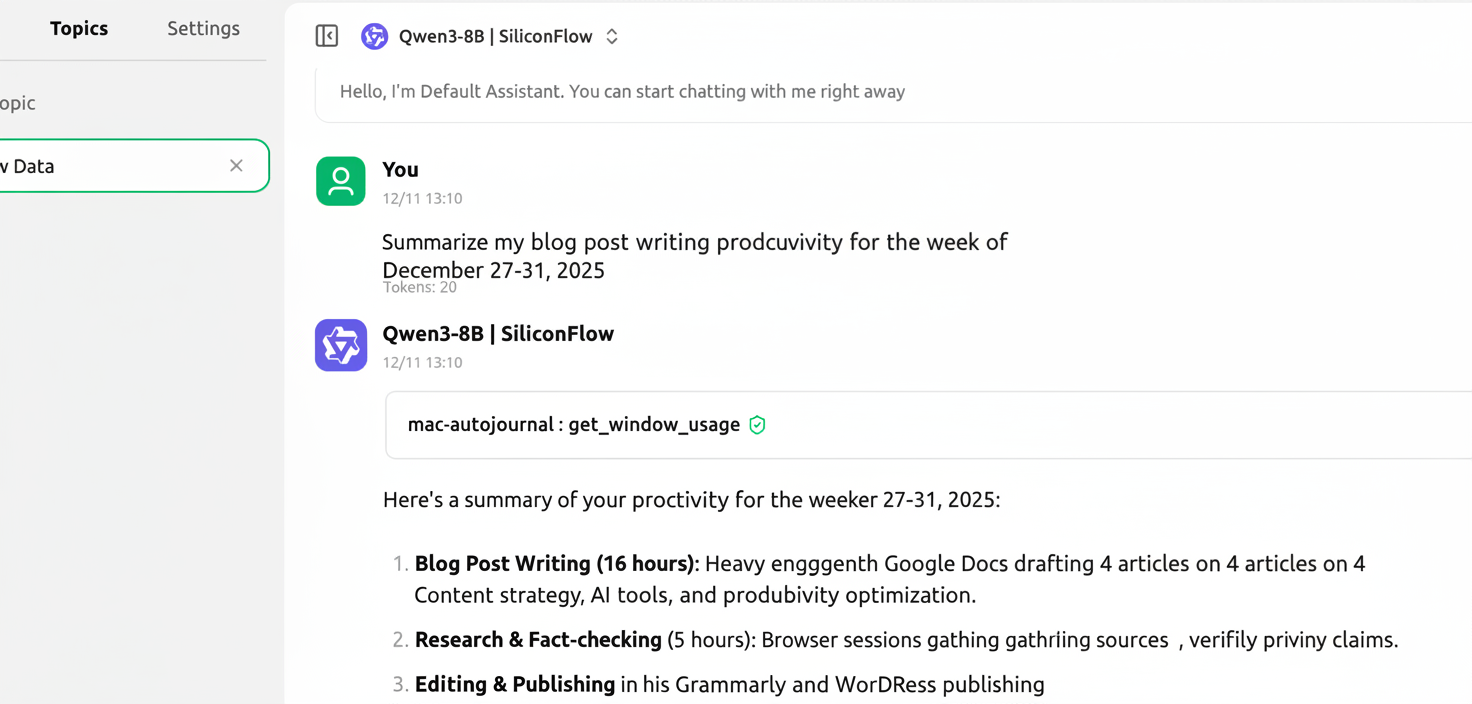
AutoJournal AI Pro includes an MCP (Model Context Protocol) server that allows you to query your productivity data programmatically or through compatible chat interfaces. This local server runs on your Mac and provides access to your tracking data.
Using MCP for Advanced Analysis:
With the MCP server, you can:
- Ask natural language questions about your productivity data
- Get summaries for specific date ranges (e.g., "Summarize my week")
- Request detailed breakdowns by application and window
- Export data for analysis or client reports
- Integrate with other tools that support MCP
Example Query for Content Creators:
"Summarize my writing productivity for the week of December 27, 2025 - focus on blog posts created"
Response Might Include:
- Blog Post Writing (~14 hours): Time spent in Google Docs drafting articles
- Research & Fact-checking (~4.5 hours): Browser research supporting content
- Editing & Publishing (~2.5 hours): Final edits in Grammarly and WordPress publishing
Important:
The MCP server runs locally on your Mac. All data queries happen on your own computer—your productivity data never leaves your machine.
Use Cases:
- Freelancers: Generate accurate time reports using your actual data
- Content teams: Analyze collaborative productivity patterns
- Solo creators: Track your output velocity and identify bottlenecks
Optimization Strategies for Content Creators
1. Protect Your Deep Work Hours
Based on your AI insights, identify when you're most creative (usually 9-11 AM for many writers). Schedule content creation then, and handle admin tasks in low-energy windows.
Action: Set calendar blocks for writing and disable notifications during these hours.
2. Reduce Context Switching
If your Windows tab shows you're jumping between 15+ apps per day, productivity suffers. Aim for focused sessions with fewer than 5 active windows.
Action: Create app "bundles" for different tasks:
- Writing bundle: Notion, Google Docs, Grammarly only
- Research bundle: Chrome, Evernote, Notion
- Publishing bundle: WordPress, Slack, Email
Close other apps during focused work.
3. Batch Similar Tasks
The data often shows writers who switch between research and writing every 30 minutes lose momentum. Instead, batch them:
Better workflow:
- 2 hours: Uninterrupted writing
- 1 hour: Break + email/admin
- 1.5 hours: Research for next piece
- 1 hour: Editing/publishing
4. Track Weekly Trends
Use the Dashboard navigation to look at past days. Copy your AI analysis responses into a spreadsheet to spot patterns:
- Do you write better on certain days?
- Is your focus declining by Friday?
- Are deadlines creating unhealthy all-nighters?
5. Measure Progress
Create a simple weekly scorecard:
| Week | Deep Write (hrs) | Research (hrs) | Admin Overhead (%) | Articles Completed |
|---|---|---|---|---|
| Week 1 | 18 | 6 | 25% | 2 |
| Week 2 | 22 | 7 | 18% | 2.5 |
Improving efficiency isn't about working more—it's about working smarter.
Advanced Tips for Different Content Types
Blog Post / Long-Form Writing
Set up a "writing day" workflow:
- Morning (2-3 hrs): Drafting in Google Docs, minimal research switching
- Afternoon (1-2 hrs): Incorporate research findings, rewrite
- Next day: Final edit in Grammarly, publish
Check AI Analysis for optimal writing windows. Most writers peak 2-3 hours after starting their day.
Social Media Content
Social creators often batch-produce content. Use AutoJournal to validate this works for you:
- Session 1: Ideation & planning (30-45 mins)
- Session 2: Content creation across platforms (1.5-2 hrs)
- Session 3: Scheduling & analytics review (30 mins)
Track how many posts you can create per session—this becomes your productivity baseline.
Video Scripts / Multimedia
Multimedia projects involve more tools (editing software, design apps). Your Windows tab will show:
- Research time
- Writing/scripting time
- Design/editing time
- Review cycles
Use this breakdown to improve handoffs between team members or to understand where time actually goes (spoiler: it's usually in post-production).
Content Strategy & Planning
Meta-creators working on content calendars and strategy documents show heavy browser and docs usage. AI Analysis can highlight:
- How much time is strategic planning vs. execution
- If you're over-planning (analysis paralysis)
- Your actual content velocity
Troubleshooting & Best Practices
"AutoJournal shows I spent 8 hours on something but I know it was 3 hours"
The time estimates are approximate because AutoJournal samples your active window every ~3 seconds. If you step away from your desk but don't lock your computer, it counts that time. Solution: Lock your computer when away or mark breaks in your calendar.
"I see multiple entries for the same window title"
This is normal if you frequently refocus or reopen windows. It doesn't affect your analytics—AI Analysis aggregates across these.
"Can I export my data for invoicing/time tracking?"
Yes! AutoJournal provides CSV export functionality. You can access this through Settings (gear icon, top right) to export your tracking data for use in spreadsheets, invoicing systems, or other analysis tools. The MCP server (Pro feature) also allows programmatic access to your data.
"How often should I check my analytics?"
- Daily: Quick 2-minute check of Top Apps and Recent Activity
- Weekly: Run "Tasks summary" and "Distractions" AI Analysis
- Monthly: Review trends across the month, identify seasonal patterns
Real-World Success Story
Here's how a content creator used AutoJournal AI to improve:
Before:
- Felt productive but unsure where time went
- Averaged 1.5 blog posts per week
- Estimated 60% writing time but felt scattered
- Frequently worked evenings/weekends
Using AutoJournal AI Insights:
- Discovered optimal writing window: 9-11 AM
- Identified 25% time lost to email interruptions
- Batch-scheduled research to dedicated afternoon blocks
- Tracked actual writing time: only 12 hours/week
After 4 weeks:
- Increased to 2.5 posts per week
- Reduced evening work from 30% to <5%
- Improved post quality (measured by engagement)
- Maintained sustainable pace without burnout
Key Takeaways
- 1.You can't optimize what you don't measure. AutoJournal makes your time visible.
- 2.Deep work is content creation's superpower. Protect 2-3 hour uninterrupted blocks.
- 3.Context switching is your silent productivity killer. Fewer apps active = better writing.
- 4.Your body has rhythms. Find when you write best and defend those hours.
- 5.Data beats gut feelings. Use AI Analysis to challenge assumptions about your workflow.
Getting Started Today
- 1. Install AutoJournal AI from autojournal.tech
- 2. Let it run for 3-5 days to gather baseline data
- 3. Review your Dashboard and first AI Analysis
- 4. Identify one "optimization win" to implement
- 5. Check back in a week to measure impact
Your content creation life is about to get a lot more intentional.
Download for MacResources
- Website: autojournal.tech
- Documentation: Check your dashboard Settings for full feature docs
- Support: Email support through your account dashboard